
New Call Flow visualizer in Teams Admin Center

Teams Admin Center gets a Call Flow Visualizer
Anyone who manages auto attendants with multiple nested levels in Teams Phone is familiar with the problem: After the third transfer, the second announcement, and several different holiday sets, it’s hard to know exactly where a call is actually going, unless you painstakingly click through every single setting.
Since late June 2026, Microsoft has made life a little easier for Teams Phone admins by rolling out the Call Flow Visualizer (Message Center entry MC1423105) in the Teams Admin Center. The feature was rolled out globally in June as a straight-to-GA release; GCC High and DoD will follow in late summer. It is enabled by default; no configuration is required.
What is the Call Flow Visualizer?
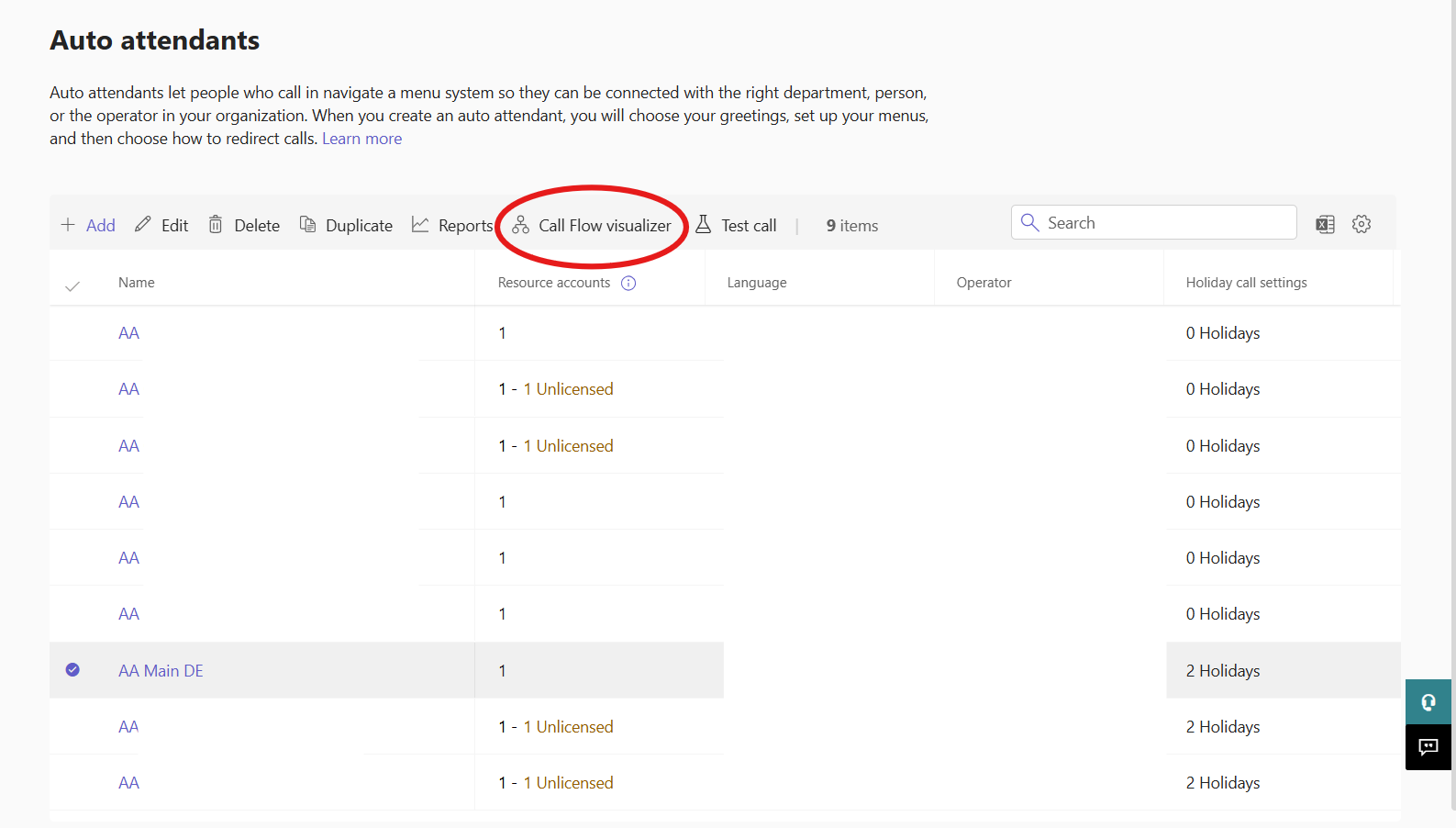
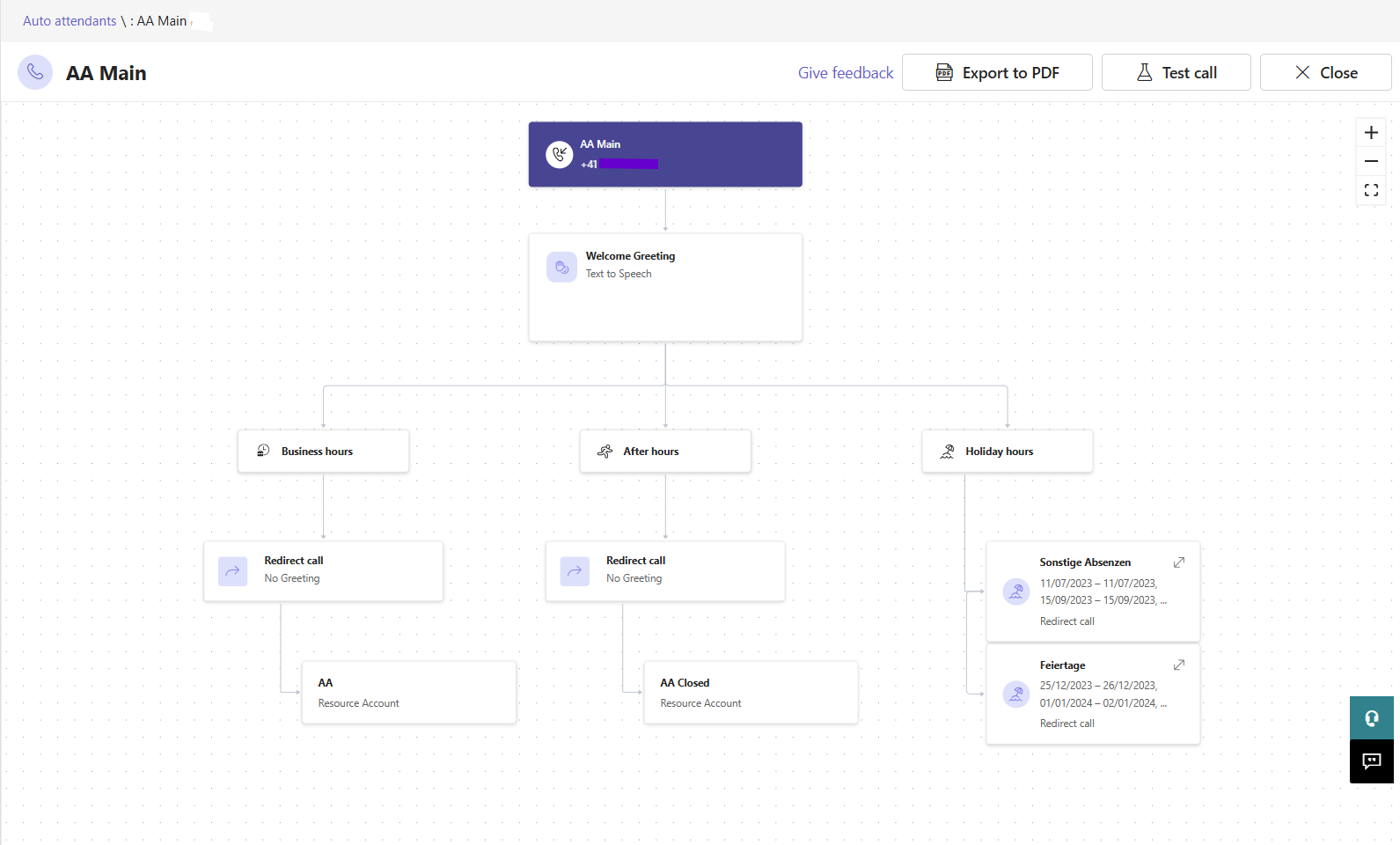
The Auto Attendants page in the Admin Center now has a "Call Flow Visualizer" menu item. Select an Auto Attendant or a Teams Phone Agent, and an interactive tree diagram opens up, with zoom and pan support.
It shows:
Assigned resource accounts and phone number
Greetings
Routing for business hours and after hours
Holiday rules and their respective branches
The call flow becomes visible in a single, clear view. The question "Where does a call actually go when...?" now gets answered much faster than through the previous chain of individual settings pages, which often had to be tracked manually across several tabs at once.
Visualizer or Editor? What the Feature is, and isn't
Worth setting expectations here: the Visualizer only ever shows one Auto Attendant or Phone Agent at a time. There's no overview across all of a tenant's hotlines. It's also not possible to edit anything within it. Anyone wanting to make a change ends up back in the familiar configuration pages, or, for more complex adjustments, in the PowerShell module for Microsoft Teams. Anyone hoping this would also make it easier to maintain multiple hotlines including Call Queues, make bulk changes, or export documentation won't find that here. Tools like the M365 Call Flow Visualizer by Microsoft MVP Martin Heusser still offer deeper visualization insight, though likewise without any editing capability.
Who benefits most from this feature
The new feature is especially useful for Microsoft 365 admins who didn't build an existing configuration themselves, or built it a long time ago, and need to quickly understand how a call is currently being routed. For troubleshooting and onboarding new IT staff, this should be a real time saver compared to manually searching through list views and multiple browser tabs.
For anyone managing more than a handful of phone numbers, locations, or departmental hotlines, the actual work stays the same as before: changes still mean PowerShell or manually clicking through the setup menus, bulk maintenance still means scripting, and documentation you can export and hand off is still something you have to build yourself.
Related posts

How Teams connects to the telephone network
While Teams Phone brings phone features to the client, it does not yet connect them to the public telephone network. To do that, you need one of three connection options. Which one is right for you - and what you need to consider.

AI Phone Systems: 3 tips to improve your Voice Agents
AI Voice Agents need more than a good prompt. Here's 3 tips to further improve them.

SPF: Who Gets to Speak in Your Name?
SPF answers a single question: is this server allowed to hand over mail on behalf of this domain? Why the ten-lookup limit exists, where the lookups go in real-world records, why SPF breaks on forwarding, and why an SPF pass without alignment counts for nothing under DMARC.