
Company Portal usage data: the one toggle you cannot configure

Every Company Portal installation ships with usage data collection switched on, and every user can turn it off for themselves. What no administrator can do is turn it off for them. There is no CSP, no Group Policy, no Intune setting and no documented registry value – Microsoft's own documentation states plainly that if you disable usage data collection, your organisation cannot change your preference.
For most tenants that is a footnote. For a manufacturer under a works council agreement, or a customer whose data protection officer has to sign off on every outbound telemetry channel, it is a finding in an audit report with no available remediation.
We have had this conversation with several customers over the past few years – in each case triggered by a security or data protection review rather than by anything technical. So here is a consolidated view of where the setting actually lives, what your options are, and the tooling we now use in customer projects.
What customers are actually asking
The question always arrives in the same shape: "We have switched off diagnostic data at the Windows level, we have configured our Conditional Access, we have documented our data flows. Company Portal is still sending usage data and we cannot find the switch. Where is it?"
The honest answer we started with was that it is user-controlled by design and there is nothing to configure. That answer is correct and completely unsatisfying, because the requirement does not go away just because Microsoft has not built a control for it.
In fairness, the data is in-app performance and usage telemetry, shared anonymously – nothing here is a privacy incident. But if you have a documented reason to switch it off, you should be able to. 😉
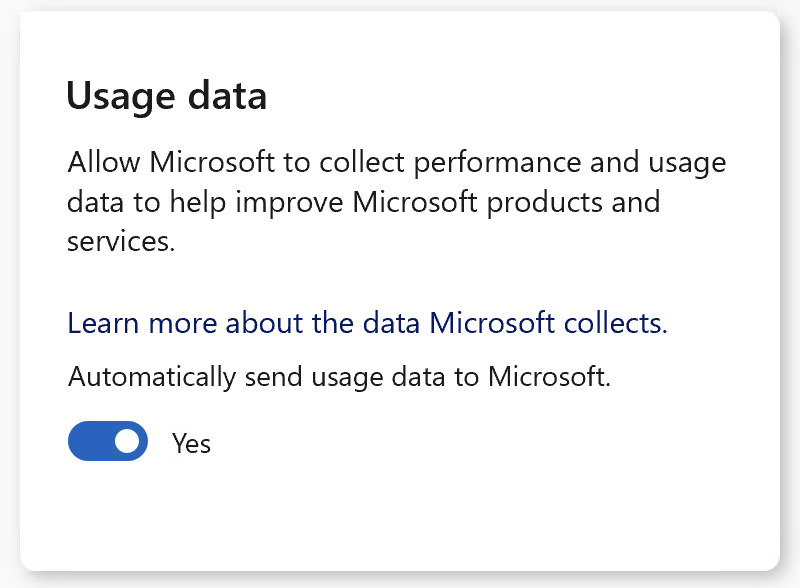
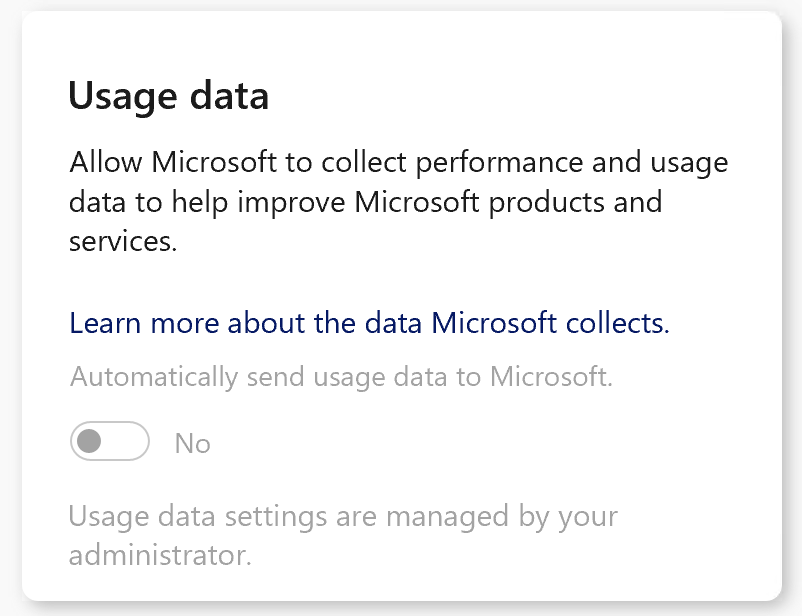
Before and after in Company Portal
This is what the setting looks like from the user's side – the state every device ships with, and the state after enforcement.
BEFORE:
AFTER:
Where the setting actually lives
Company Portal is a packaged app, and it stores its state the way packaged apps do – in a UWP settings hive:
%LOCALAPPDATA%\Packages\Microsoft.CompanyPortal_8wekyb3d8bbwe\Settings\settings.datWhile the app runs, that file is mounted as an application hive. In Process Monitor you see writes to paths like this:
\REGISTRY\A\{92d49cf2-...-43034e6f1911}\LocalState\SspState\TelemetryEnabledThe \REGISTRY\A root is where hives loaded through RegLoadAppKey() live, and the kernel refuses to let anything traverse it. That refusal is not a permissions problem you can elevate your way out of: CmpParseKey denies the request regardless of the security descriptor or the caller's privileges. Running regedit as SYSTEM or TrustedInstaller changes nothing. There is no HKLM or HKCU equivalent path, and the GUID is just the mount name for that load – searching the registry for it is wasted effort.
That is why the setting looks like it does not exist. It exists; it is simply not in the namespace regedit can see.
Two flags, not one
Mount a copy of the hive and enumerate LocalState\SspState, and the interesting part is that there are two telemetry values, not one:
TelemetryEnabled(Boolean) – the user's own toggle.TelemetryDisabledByAdmin(Boolean) – Untouched since profile creation on every device we have looked at.
The value format
You cannot write these values with reg.exe or regedit, and this is why. UWP settings hives use non-standard registry types built from the WinRT type system:
registry type = 0x5F5E100 + WinRT PropertyType enum valueWhich gives, for the types present in Company Portal's hive:
0x5F5E104– decimal 100000004 – Int32 – e.g.OnboardingState0x5F5E10B– decimal 100000011 – Boolean – e.g.TelemetryEnabled0x5F5E10C– decimal 100000012 – String – e.g.Language,SspVersion
Every payload is followed by an 8-byte UTC FILETIME acting as a per-value last-write stamp, and strings are null-terminated UTF-16LE. A boolean is therefore nine bytes: one byte of payload plus the timestamp.
Write a plain REG_DWORD or REG_BINARY in its place and the app reads it back as corrupt. reg.exe cannot emit a custom type at all, which rules out every one-line remediation script you might otherwise reach for.
Your options at a glance
Option 1 – Document it as an accepted risk
Entirely defensible, and for many tenants the right answer. Record that the channel exists, that it is user-controlled by design, that Microsoft provides no administrative control, and that the data in question is app usage rather than user content. Attach it to your data protection documentation and move on.
Choose this if the requirement came from a checklist rather than from a regulator.
Option 2 – Communication-led opt-out
Tell users where the toggle is and ask them to switch it off. Two clicks in Company Portal settings.
The obvious weakness is coverage. In our experience this reaches the users you least need to reach and misses frontline and shared-device users almost entirely – the same pattern we see with every self-service prompt. It also produces no evidence, which is usually the actual requirement.
Option 3 – Tighten OS diagnostic data anyway (adjacent, not a substitute)
Worth doing, but be clear that it does not touch this setting. System/AllowTelemetry and the equivalent Settings Catalog policy govern Windows diagnostic data through the Connected User Experiences and Telemetry service. Company Portal's usage data is the app's own optional telemetry, which is precisely why it lives in a private app hive rather than anywhere a CSP can reach it.
There is no documented relationship between the two, and no reason to assume the app consults the OS diagnostic data level before sending its own events. If an auditor asks whether you have constrained diagnostic data, this is the answer. If they ask specifically about Company Portal usage data, it is not.
Note also that switching the app toggle off does not stop everything. Microsoft is explicit that the data required to run the Intune service continues to be sent regardless – it simply contains no personal information. Anyone expecting radio silence from the device will be disappointed.
Option 4 – Enforce the app flag through Intune Remediations
Set TelemetryDisabledByAdmin directly in the hive, as a user-context detection and remediation pair. This is what can be deployed where the requirement is real, and it is unsupported – see the caveats further down before you decide.
Our recommendation for customers with a genuine compliance driver is Option 3 and Option 4 together, with Option 2 as the communication layer. Option 3 is your supported baseline, Option 4 closes the specific gap, and Option 1 is what you fall back to if a Company Portal update breaks the mechanism.
The scripts
We have published the tooling so you can inspect it before running it. Both run in user context and require PowerShell 5.1.
Detect-CompanyPortalTelemetry.ps1 – detection script. Read-only against the hive. Exit 0 compliant, exit 1 drift.
Remediate-CompanyPortalTelemetry.ps1 – remediation script. Writes the flag with the correct type and timestamp, then verifies the write.
Settings for the script package in Intune:
Run this script using the logged-on credentials – Yes
Enforce script signature check – No, unless you sign them
Run script in 64-bit PowerShell – Yes
Schedule – Hourly
Assign to a device group for reporting-related reasons.
We as well noticed, that the TelemetryDisabledByAdmin value is being reset sometimes, but the user value is kept. This is why we set the remediation schedule to hourly, this is totally up to you. But in this case it's better than nothing.
Use at your own risk
Everything below the API boundary in this post is undocumented. TelemetryDisabledByAdmin appears in no CSP, no Group Policy, no Settings Catalog and no Microsoft documentation. If it stops working after an app update, there is no support case to open and no regression to report – you are using a value Microsoft never published, and that is the trade you are making.
Related posts

Passkeys become the default in Entra ID – what to do before September 1
With Microsoft phasing out SMS and voice MFA in Entra ID, passkeys are becoming the new default. Here is how to prepare your organization before the deadlines.

Full Participation: Why a DMARC Standard Doesn't Mean p=reject for Everyone
DMARC is now an IETF standard, RFC 9989. But a standard is not a mandate, and full participation does not mean p=reject. What DMARCbis actually requires, and why the standard even bars receivers from blindly enforcing p=reject.

DMARCbis: The tag changes and why t doesn't replace pct
DMARCbis cleans up the DMARC tags: pct, rf, and ri are dropped, while np and t are added. It sounds like routine, but it isn't everywhere. Why t does not replace pct and what this means for the path to full enforcement.